Showing posts with label blogger widgets. Show all posts

2009-05-21

Image

Adding scroll bar to sidebar widgets

We can add the scrollbar only to one or several of the widgets. To do that, we must first know the ID of the widget. When we are at Template -> Edit HTML, scroll towards the bottom of the template code. You will see something like this:-


<div id='sidebar-wrapper'>
<b:section class='sidebar' id='sidebar' preferred='yes'>
<b:widget id='LinkList1' locked='false' title='General' type='LinkList'/>
<b:widget id='HTML1' locked='false' title='' type='HTML'/>
<b:widget id='Label1' locked='false' title='Label' type='Label'/>
</b:section>
</div>


In this example, we have added a Link List Page Element into our Sidebar and the ID for this widget is “Linklist1”. If we have more link lists, the IDs will be “Linklist2”, “Linklist3” and so on. Also, we have inserted a HTML/JavaScript Page Element and the ID is “HTML1”. The third widget we added is a Label list and the ID is “Label1”. Look at your template and identify the widget. Take note of the widget ID.

With the ID, we can now add the overflow property into the stylesheet under /* Sidebar Content */:-

/* Sidebar Content */
#Label1{
height:200px;
overflow:auto;
}

This will add the scroll-bar to the Labels widget only without affecting the other widgets. Insert the relevant ID of your widget into the portion shown in blue.

another Method


Select HTML JAVASCRIPT to add the page element .

Now You have to add some html codes to his page element to show of the scroll bar menu widget to the sidebar of your blogger.


<div class="widget-content">
<ul style="height:150px;width:150px; overflow:auto; ">

<li><a href="http://3rb-game.blogspot.com/">Your Text</a></li>
<li><a href="http://3rb-game.blogspot.com/">Your Text</a></li><span style="font-weight:bold;"></span>

</ul></div>


Copy this codes and paste it to page element and save it.

Now preview your blog.

You can change your links
http://3rb-game.blogspot.com/ and text in the codes to show of yours links and posts.

Note:-In the codes you can edit height and width in red to adjust it to your blog.


2009-05-04

Image

Add A Customized Related Posts Widget In Blogger

Related Posts Widget is one of the MUST-HAVE widgets in a blog.This serves as a helpful guide to readers for topics that may be related to the current post/entry.


How It Works.
Generally, the widget is based on Category or Label. Once the blog author labeled the post (regardless whether it's single or multiple labels), all posts that fall under such category will be seen in the Related Posts Widget.


Related Posts Widget Appearance.
The appearance may vary.

Some hacks show segregation of posts based on category; each category name is labeled for easy reference.

courtesy of:
3 Columns Blogger Template


On the other hand, other hacks show a combined list of related posts for a neater and more refined look. Like this one:
courtesy of:
Blogger Accessories


Customized Related Post Widget.
While the categorized Related Posts widget for multiple labels look orderly, some bloggers (like myself) prefer to have the related posts in one tidy list.

DCBlog has a fantastic hack on how to do this in his post - Hacking Related Posts. What's great about his hack is that the customization is fairly simple and the overall look is truly nice and pretty elegant. Below is an example of how it looks in my blog.

His hack is a combination of the following blogs' hacks:
SCRIPT: Related Posts Widget For Blogger With CSS
CSS: A blogger hack to show related posts before each blogger posts
BLOGGER CODE: How to show related posts/articles in blogspot blogs

To read more about this hack, check out DCBlog's Hacking Related Posts


How To Add Customized Related Post Widget in Blogger.
This one is based on DCBlog's Hacking Related Posts.


NOTE: BACKUP YOUR TEMPLATE!


(1) Go to Layout. Edit HTML.
(2) Before the closing tag of


]]></b:skin>

insert this CSS code from Bloganol.


/*-- related posts --*/


#related-posts {
float : left;
width : 450px;
margin-top:20px;
margin-left : 5px;
margin-bottom:20px;
font : 11px Verdana;
margin-bottom:10px; }


#related-posts .widget {
list-style-type : none;
margin : 5px 0 5px 0;
padding : 0; }


#related-posts .widget h2, #related-posts h2 {
color : #940f04;
font-size : 20px;
margin : 5px 7px 0;
padding : 0 0 5px; }


#related-posts a {
color : #1566a7;
font-size : 11px;
text-decoration : none;}


#related-posts a:hover {
color : #99cc00;
font-size : 16px;
font-weight: bold;
text-decoration : none; }


#related-posts ul {
border : medium none;
margin : 10px;
padding : 0; }


#related-posts ul li {
display : block;
background : url() no-repeat 0 0;
margin: 0;
padding-top : 0;
padding-right : 0;
padding-bottom : 0;
padding-left : 0;
margin-bottom : 5px;
line-height : 2em;
border-bottom:1px dotted #cccccc; }

For more tips on customizing this CSS, check out DCBlog's post..

(3) Before the closing tag of


</head>


add this script from Blogger Accessories


<script type='text/javascript'>
//<![CDATA[
var relatedTitles = new Array();
var relatedTitlesNum = 0;
var relatedUrls = new Array();
function related_results_labels(json) {
for (var i = 0; i < json.feed.entry.length; i++) {
var entry = json.feed.entry[i];
relatedTitles[relatedTitlesNum] = entry.title.$t;
for (var k = 0; k < entry.link.length; k++) {
if (entry.link[k].rel == 'alternate') {
relatedUrls[relatedTitlesNum] = entry.link[k].href;
relatedTitlesNum++;
break;
}
}
}
}
function removeRelatedDuplicates() {
var tmp = new Array(0);
var tmp2 = new Array(0);
for(var i = 0; i < relatedUrls.length; i++) {
if(!contains(tmp, relatedUrls[i])) {
tmp.length += 1;
tmp[tmp.length - 1] = relatedUrls[i];
tmp2.length += 1;
tmp2[tmp2.length - 1] = relatedTitles[i];
}
}
relatedTitles = tmp2;
relatedUrls = tmp;
}
function contains(a, e) {
for(var j = 0; j < a.length; j++) if (a[j]==e) return true;
return false;
}
function printRelatedLabels() {
var r = Math.floor((relatedTitles.length - 1) * Math.random());
var i = 0;
document.write('<ul>');
while (i < relatedTitles.length && i < 20) {
document.write('<li><a href="' + relatedUrls[r] + '">' + relatedTitles[r] + '</a></li>');
if (r < relatedTitles.length - 1) {
r++;
} else {
r = 0;
}
i++;
}
document.write('</ul>');
}
//]]>
</script>


(4) Search for this line of code:


<p><data:post.body/></p>


(5) Underneath this line, insert this blogger code from Realtrix


<b:if cond='data:blog.pageType == "item"'>
<div id="related-posts">
<font face='Arial' size='3'>
<b>Related Posts :</b>
</font>
<font color='#FFFFFF'>
<b:loop values='data:post.labels' var='label'><data:label.name/>
<b:if cond='data:label.isLast != "true"'>,</b:if>
<b:if cond='data:blog.pageType == "item"'>
<script expr:src='"/feeds/posts/default/-/" + data:label.name + "?alt=json-in-script&callback=related_results_labels&max-results=5"' type='text/javascript'/>
</b:if>
</b:loop>
</font>
<script type='text/javascript'> removeRelatedDuplicates(); printRelatedLabels();
</script>
</div>
</b:if>


The text "Related Posts" may customized:


<b>Related Posts :</b>


(6) Save Template.
(7) View Blog.

Here is the result:


Credits go to: Bloganol, Blogger Accessories, and Realtrix for creating wonderful hacks; DCBlog for putting them together to create another fantastic hack.


Blogs of Note that have Related Posts Widgets Hacks:
Jackbook
PurpleMoggy
Scrapur
Hoctro's Place
EverybodyGeek


Image

Custom Blogger Fllowers Widget

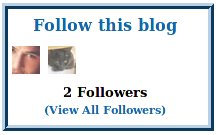
Wanting to add some border or light background on your newly installed Followers Widget? Perhaps do some simple customization like text alignment or font style changes like the image below?


custom blogger followers widget


Here's how.

NOTE: BACKUP YOUR TEMPLATE!

1. Go to Layout. Edit HTML.
2. Make sure that the "Expand Widget Templates" checkbox is UNCHECKED.
3. Look for this line of code:


<b:widget id='Followers1' locked='false' title='' type='Followers'/>

4. Replace the above code with this:


<b:widget id='Followers1' locked='false' title='' type='Followers'>
<b:includable id='main'>
<b:if cond='data:title != ""'>
<h2 class='title'><data:title/> (<data:totalFollowerCount/>)</h2>
</b:if>

<div expr:id='data:widget.instanceId + "-wrapper"'>
<br/>

<div class='followerbox'>
<b:if cond='data:followingLinkPresent'>
<div class='follow-this profile-link item-control following-follow-this'>
<a class='followthisblog' expr:href='"javascript:_FollowersView._openPopup(\"" + data:followUri + "\");"'>
<data:followThisMessage/>
</a>
</div>
<div class='follow-this profile-link item-control following-stop-following-this'>
<a class='followthisblog' expr:href='"javascript:_FollowersView._openPopup(\"" + data:followUri + "\");"'>
<data:stopFollowingMessage/>
</a>
</div>
</b:if>

<div class='followers-grid'>
<b:if cond='data:totalFollowerCount == 0'>
<div class='profile-link item-control following-follow-this'>
<data:emptyFollowersMessage/>
</div>
</b:if>
<!--
Relies on the js written out in navbar.gxp
-->
<b:loop values='data:followers' var='follower'>
<div class='follower'>
<a expr:href='data:follower.profileUrl' expr:title='data:follower.displayName' rel='nofollow'>
<img class='follower-img' expr:alt='data:follower.displayName' expr:height='data:follower.imageHeight' expr:onerror='"this.onerror=null;this.src=\"" + data:anonFollowerImageUrl + "\";"' expr:onload='"setAttributeOnload(this, \"src\", \"" + data:follower.imageUrl + "\")"' expr:width='data:follower.imageWidth' src='http://img1.blogblog.com/img/blank.gif'/>
</a>
</div>
</b:loop>
<div class='clear'/>
</div>

<div class='followers-canvas profile-link'>
<data:followersFooterMessage/><br/>
<span class='item-control following-not-admin'>
<a class='showallfollowers' expr:href='data:followersUri'>
<data:viewAllMessage/>
</a>
</span>
<span class='item-control blog-admin'>
<a expr:href='data:manageFollowersUri'>
<data:manageFollowersMessage/>
</a>
</span>
</div>

<b:include name='quickedit'/>
</div>

</div>
</b:includable>
</b:widget>


Now, for the CSS part.

(1) Before the closing tag of


]]></b:skin>
</head>

place the following codes:


.followerbox {
text-align: center;
width: 200px;
background-color: #ffffff;
border: 6px ridge #1566a7;
}

.followthisblog {
font-weight:bold;
font-size:16px;
}

.showallfollowers {
font-size:11px;
}

(2) Save template.
(3) View Blog.

An explanation on the CSS Part.


.followerbox {
text-align: center;
width: 200px;
background-color: #ffffff;
border: 6px ridge #1566a7;
}

The "followerbox" class pertains to the div where the whole Followers widget was placed. Here, you may adjust how wide or how long you prefer your widget to be, apply background color and even borders.


.followthisblog {
font-weight:bold;
font-size:16px;
}

.showallfollowers {
font-size:11px;
}

The "followthisblog" and "showallfollowers" classes pertain to the anchor link properties where you may change how the "Follow this blog" and "View All" texts would appear.


Change the VIEW ALL text

If you want to change the "View All" text, just look for this line of code:


<data:viewAllMessage/>

and replace it with the text of your choice.

Add Image Opacity Effects

If you want to have an image opacity onhover effects like the one on my Followers widget, follow this three simple steps:
(1) add this line after the css properties declared earlier:


a.followeropacity img {
filter:alpha(opacity=70);
-moz-opacity: 0.7;
opacity: 0.7;
}

a.followeropacity:hover img {
filter:alpha(opacity=100);
-moz-opacity: 1.0;
opacity:1.0;
}

You may adjust the opacity value from 0 (lightest) to 100 (normal) according to your preference.

(2) CHECK the "Expand Widget Templates" and look for this line of code:


<a expr:href='data:follower.profileUrl' expr:title='data:follower.displayName' rel='nofollow'>

(3) Replace it with this:


<a class='followeropacity' expr:href='data:follower.profileUrl' expr:title='data:follower.displayName' rel='nofollow'>

The bold-faced text was the css class inserted.


2009-04-25

Image

Blogger RSS or email subscription form

 So what about the default Feedburner email subscription form in Blogger ?? It looks ugly right ?? . Now here you could use CSS to to create Beautiful email and RSS subscription form . An example of such a form is given here on my blog .

What you need is just to change the default code with this code .

&lt;a href=&quot;http://feeds2.feedburner.com/3rb-game&quot;&gt;&lt;img alt=&quot;feedburner&quot; style=&quot;border: 0pt none ; margin-top: 15px;&quot; src=&quot;http://i44.tinypic.com/o945yf.jpg&quot;/&gt;&lt;/a&gt;&lt;p&gt;&lt;strong&gt;&lt;span style=&quot;color:#ID9EDD;&quot;&gt;Subscribe for Email Updates&lt;/span&gt;&lt;/strong&gt;&lt;/p&gt;&lt;form action=&quot;http://www.feedburner.com/fb/a/emailverifySubmit?feedId=3rb-game&quot; http://www.feedburner.com/fb/a/emailverifysubmit?feedid=&quot;3rb-game&quot; , popupwindow\ );return true target=&quot;popupwindow&quot; id=&quot;subscribe&quot; onsubmit=&quot;window.open(\&quot; scrollbars=&quot;yes,width=550,height=520\&quot; style=&quot;border:1px solid #fff;padding:0px;text-align:left;&quot; method=&quot;post&quot; \&gt;&lt;img style=&quot;vertical-align:middle;border:0&quot; src=&quot;http://i35.tinypic.com/ifv98i.jpg&quot;/&gt;&amp;#160;&lt;input ;} enter email onfocus=&quot;if (this.value == &quot; value=&quot;Enter your email address...&quot; address... type=&quot;text&quot; id=&quot;subbox&quot; onblur=&quot;if (this.value == &quot; ) {this.value =  style=&quot;width:210px&quot; your name=&quot;email&quot;/&gt;
&lt;input value=&quot;http://www.feedburner.com/fb/a/emailverifySubmit?feedId=3rb-game&quot; name=&quot;url&quot; type=&quot;hidden&quot;/&gt;
&lt;input value=&quot;Subscribe To Feed&quot; name=&quot;title&quot; type=&quot;hidden&quot;/&gt;
&lt;input value=&quot;en_US&quot; name=&quot;loc&quot; type=&quot;hidden&quot;/&gt;
&lt;input id=&quot;subbutton&quot; value=&quot;GO&quot; type=&quot;submit&quot;/&gt;
&lt;/form&gt;
&lt;center&gt;&lt;a href=&quot;http://feeds2.feedburner.com/3rb-gamel&quot; target=&quot;_blank&quot;&gt;
&lt;img border=&quot;0&quot; width=&quot;88&quot; src=&quot;http://feeds2.feedburner.com/%7Efc/3rb-game?bg=99CCFF&amp;fg=444444&amp;anim=0&quot; height=&quot;26&quot;/&gt;
&lt;/a&gt;&lt;/center&gt;


Replace the the email subscription URL, feed URL

2009-04-20

Image

Add Related Posts To Your Blogger Post

Now here is wonderful hack for displaying links to related postsbeneath each of your blog posts. The related articles are chosen fromother posts in that same category / label. With this hack many of yourreaders will remain on your site for longer periods of time when theysee related posts of interest.

How to install

1. Go to Layout --> Edit HTML in your Blogger Dashboard.

2. Back up your existing Template before making any changes!

3. Make sure to check the "Expand Widget Templates" box.

4. Search for the
</head>
tag.

5. Add the following code just before the
</head>
tag.


<style>
#related-posts {
margin:0; padding:10px;height:200px;overflow:auto;border:1px solid #ccc;
}
#related-posts .widget {
list-style-type : none;
margin : 5px 0 5px 0;
padding : 0;
}
#related-posts .widget h2, #related-posts h2 {
color : #940f04;
font-size : 20px;
font-weight : normal;
margin : 5px 7px 0;
padding : 0 0 5px;
}
#related-posts a {
color : #054474;
font-size : 11px;
text-decoration : none;
}
#related-posts a:hover {
color : #054474;
text-decoration : none;
}
#related-posts ul {
border : medium none;
margin : 10px;
padding : 0;
}
#related-posts ul li {
display : block;
background : url("http://i299.photobucket.com/albums/mm297/zozuglogger/weed-bullet.gif") no-repeat 0 0;
margin : 0;
padding-top : 0;
padding-right : 0;
padding-bottom : 1px;
padding-left : 16px;
margin-bottom : 5px;
line-height : 2em;
border-bottom:1px dotted #cccccc;
}
</style>
<script src='http://h1.ripway.com/amrmrx/Related_posts_hack.js' type='text/javascript'/>

6. Now search for
<p><data:post.body/></p>


7. Add the following code just beneath the code you just searched for.


8. Now Save your Template and you're done!

2009-04-15

Image

How to add social bookmarker widgets in Blogger


This plugin allows us to add nine popular bookmarkers button on every pages of our blog. Including Digg, Technorati, Delicious, Yahoo! MyWeb, Google Fusion, Blink, Furl, Simpy, and Stumble upon. Here we go..

1. Go to your Blogger Dashboard. Than click manage layout of your desired blog.

2. You'll be in Template page at Page Element Tab. Now click [Add a Page Element]. Just choose where you'll place the widget is. In this case I set it at bottom of every post, so I'll place it below Posting Blog coloumn (See picture).

Add a page element

3. A popup window will appear. There you can choose what kind of page element you want to add. Now select [HTML/JavaScript] element. Than click [Add to Blog] button. A 'Configure HTML/JavaScript' page will appear, leave it first.

Choose page element

4. Click and copy this given code.

Code Here

5. Go to popup window again. Fill in title of element first than paste the code at 'Content' area (Right click and paste). Lastly, just click [Save Changes] button.

Paste the code

6. Now open your blog and test the widget. Below is example of working in my blog. You can try how easy this widget in use by submitting this page to Digg, Technorati, and Delicious.

Demo screenshoot

2009-04-08

Image

Add TwitThis on your Blogger template and drive more traffic on your website

TwitThis is an easy way for people to send Twitter messages about your blog post or website. This tutorial illustrates a simple way to add a TwitThis link on each post of your Blogger template. I suggest you to try it because it's very useful and drive a lot of traffic on your website if you have a good Twitter network.


To add TwitThis on your Blogger template you can using the code you can find here. That code uses JavaScript. If you want use a simpler way to add it use this alternative.

HTML code
Sign-in in your Blogger dashboard and click on Layout Tab > Modify HTML. Select expand widgets option and copy the following code where you want in the posts section (for example below the post title).


Copy and paste the code exactly how it is in the box above! Don't remove spaces!

CSS code
If you like my TwitThis link (), add this class in your CSS file and use it in the previous link:

.share-twitthis{
background:url(http://tinyurl.com/ay2jsc) 10px top no-repeat;
padding-left:42px;
font-size:11px;
line-height:18px;
}

That's all!

2009-04-05

Image

Back up Your Blogger Widgets

Reason why we do this:
► if we want to switch to a new Template (change a design)...
► if we want to switch to another Blog platform...
► to make sure we don't lose our gadgets (widgets) if something happens...
1- See This Video


2. BACKING UP WIDGETS THROUGH PAGE ELEMENTS
Sign in to your Blogger account, then go to: LAYOUT -- PAGE ELEMENTS.

Gadgets you've added are your Widgets. You have to click on EDIT under each widget (gadget), copy the code, and paste it into Notepad, or some other HTML text editor.

Don't worry about LABEL, ABOUT ME and ARCHIVES widget. They are default, and you can't copy them. You will not lose those...
Later, when you install a new template, just add the code you've saved through Add Gadget option, or in directly in HTML of your template (if necessary) ...

2009-04-04

Image

Add Aorta Widget

The Aorta Widget displays a mashup from your Blogger Blog, your Picasa Web Albums, your Flickr Photo's and your YouTube Channel. Read the installation instructions!
This widget requires that your browser accepts script execution.
Click the button to add this widget to your blog.

Image

Aorta Widget installattion

If you like mashups, you probably will like my new Aorta Widget as well. It displays your life's bloddstream, your Aorta, in the sidebar of your Blog. What is in your Aorta? Your Blogger Blog feed, to begin with. But also your Flickr Photo's, your Picasa Webalbums, and your YouTube Channel.

Easy Installation
Go to the Widget Installation & Downlaods Page, and click the Install Widget to Blog button. This will bring up the Widget Installer, where you can customize the widget before installation.
Enter the full url of your Blogger blog. If you have a Picasa Webalbums account, enter the Picasa username here. If you don't have a Picasa account, leave this field blank. If you have a Flickr account, enter your FlickrID here. Again, if you have no account, leave the field blank. Finally, enter your YouTube username, or leave blank if you have no YouTube presence.
Click Customize, and then Add to my Blog.

Easy Styling
Add custom CSS-classes to your skin. You need .bbaortabox, .bbaortaitem and .bbwidgetfooter.
Image

Pipe Your Plaxo Pulse Into Blogger

Well, I suppose that you know at least one word from this title: Blogger. Then it is time to get acquainted with Plaxo and Yahoo! Pipes. Again, as in many other Widgets I have created, the Widget might be of little practical use. But it has an educational purpose as well: it shows how to mash up datafeeds from different websites, transform them into JSON, so that you can easily pump the data into your Blogger sidebar. So here we go!

Plaxo
Plaxo is a social network service, that you can use to maintain your personal and business networks. Plaxo has been out there for several years now, but the new idea of Plaxo Pulse has given new dimensions to the use of Plaxo. The Pulse lets you share all kind of information with your network. You can add blogfeeds, links, photo's, messages or polls to your Pulse, and share them with your friends, your family, business relations, or with all of them.

Yahoo! Pipes
With Yahoo! Pipes you can convert any feed from any webpage into something else. You can mash up data from different sources, and create your own feed with it.

Piping your Pulse into Blogger
For this new widget I enabled my Personal Pulse Feed in Plaxo. This means that there is a feed containing all 'events' that took place, for example changes in personal information (phonenumber, address, etc.), or links that I added to my Pulse. This feed is a standard RSS-feed, and that is of little use because the widget needs a JSON-formatted feed (I have explained the JSON-concept in another post).
So that is where Yahoo! Pipes come in handy. I created a simple pipe, that picks up the Plaxo Feed Url. The output of this pipe can be retrieved in JSON-format. And my new widget takes that JSON-output as its input.
Relax, it sounds more complicated than it is.

Setting Up Your Plaxo Feed
Assuming you have a Plaxo account, sign in on Plaxo, and select your Pulse.
Scroll down to the bottom of the page, and click on RSS Feeds. This brings you to the Pulse Stream RSS Feeds page. Here you can see the 5 possible feeds: Everyone, Business Network, Family, Friends, and Me.
Select one of them and click on Enable. The feed will be enabled, and you can copy the Feed Url from the textbox. Copy it to Notepad for now.
This was step 1. Easy, wasn't it?

Creating the Pipe
Assuming you have a Yahoo! account, go to http://pipes.yahoo.com and sign in.
At the top of the page, click on Create a pipe to bring up the Pipe Editor. You will see the empty canvas with the text drag modules here, and several modules to the left side of the canvas. Drag the Fetch Feed-module onto the canvas. Now copy the Plaxo Feed Url from Notepad, and paste it into the url-input box in the Fetch Feed Module. Now connect the Fetch Feed Module to the Pipe Output box. A blue line will appear. Guess what - you have just created your Pipe!
Click on the Pipe Output box to select it. In the Debugger window at the bottom of the screen you will see your Pipe's Output.
Now click the Save-button, and click Back to my pipes.
From this list of pipes, click on your newly created Plaxo Pipe to run it and view its output. At the top-right you will see a small Feed-icon, with the text More options. Click this link to open a small pop-up menu. Right-click on the menu option called Get as JSON and copy the link and save it in Notepad. You will need this JSON-Feed-Url in the next step.
You have now completed step 2.

Installing the Widget
Now it is time to install the widget to your Blog. Go to the Widgets and Downloads Page, and click the Add Plaxo Pulse Widget to my Blog button. This will start the Click-n-Go Installer. In the install-screen, enter the JSON-Feed-Url from your Yahoo Pipe, and set the maximum number of items to display. Click Customize to create the Widget code, and then Add to my Blog to add the Widget to one of your Blogs.

Add some CSS
For your convenience I have added 3 custom CSS classes:
  • .bbplaxobox: a wrapper containing the widget

  • .bbplaxoitem: the item itself

  • .bbwidgetfooter: the widget footer

Add style definitions for these classes to your template's skin.

Your Privacy
As far as I know, sharing the feed only shares the fact that you have added or changed information. The feed will NOT contain the new information. Clicking on a Pulse Item brings the user to the Plaxo Pages. Information is only visible after sign-in, for users who are connected to you.
Image

Add Plaxo Pulse Widget

The Plaxo Pulse Widget displays events from your Plaxo Pulse in your sidebar. The widget needs JSON-formatted input, so you first have to Pipe your Plaxo Pulse Feed with Yahoo! Pipes. So first of all, read the installation instructions!
This widget requires that your browser accepts script execution.
Click the button to add this widget to your blog.


Image

Add Google Calendar Widget

The Google Calendar Widget displays events from your Google Calendar in your sidebar. You can customize this widget to display the events of any public Google Calendar that you like; you can customize the number of events to display, whether or not to display the calendarname, calendardescription and owner, as well as whether or not to display event details. You can style the widget by adding some new classes tom your CSS styling.
This widget requires that your browser accepts script execution.
click the button to add this widget to your blog.

Image

Add Weather Report Widget

This is the first installable widget I created, it puts a weather report for Amsterdam on your blog.

Image

Add Recent posts widget

The Recent Posts Widget displays recent posts summaries in your sidebar. You can customize this widget to display the recent posts of any blogger blog that you like, you can customize the number of posts to display, whether or not to display a postsummary and the size of this summary. And you can use a standard styling, or you can define your own CSS styling.
This widget requires that your browser accepts script execution.
click the button and use the Click-n-Go Widget Installer to add this widget to your blog.
Image

Add Recent Comments Widget / Plugin

The Recent Comments Widget displays recent blog comments on your sidebar.You can use this widget to display the recent comments of any blogger blog.You can customize the number of comments to display in the widget, whether or not to display the author name and the comment-date, and the size of the comment(in characters). And you can use a standard styling, or you can define your own CSS styling.


Image

Add Blogger Search Widget / Plugin blogspot

Basic Blogger Search widget which needs no javascript or customization.

Image

Add Blogger Subcription Widget / Plugin to your blogspot


This is the basic subscription widget with feed and email subscription links..

The subscription widget will look like the pic provided here(Though the colours may vary according to your template.)..

Click the Button below to add the subscription plugin / widget.

Image

Add Google Talk Gadget/ Widget / Plugin


Google Talk Widget /gadget or plugin, whatever you may call it enables the visitors to sign into google talk from your blog.To add the Gadget use the following button.(The pic shows the gadget widget..)


Image

Add Picasa Albums Widget / Plugin

The Picasa Albums Widget displays pictures from your public Picasa Albums in your sidebar.


Total Pageviews