Showing posts with label Blogger Tutorial. Show all posts

2009-05-01

Image

What The Difference - HTML and XHTML

When inserting codes into the Blogger template, page element, or blog post, you may have seen error messages that the code could not be parsed, was not well-formed, was broken, or that the elements were not closed properly. These errors can be corrected if you understand the rules that must be adhered to in XHTML documents. Blogger templates use the XHTML 1.0 Strict Document Type. In this article, we shall explain some of the XHTML syntax or rules, so that you may troubleshoot and resolve the problems if these error messages should occur.

XML, HTML and XHTML

We shall keep this short. Just so as you understand what we said about document type, view the Page Source or Source of your Blogger blog. You should see this document type declaration at the very top:-

<!DOCTYPE html PUBLIC "-//W3C//DTD XHTML 1.0 Strict//EN" "http://www.w3.org/TR/xhtml1/DTD/xhtml1-strict.dtd">


The terms – XML, HTML and XHTML - refer to the markup language used to write the web pages. Many of us would have heard of HTML (Hypertext Markup Language), invented by Tim Berners-Lee, and used since the early days of internet. XML (Extensible Markup Language) is a meta-language, used to create other markup languages. The traditional HTML was later recast to use the rules of XML and that resulted in a new XML application, called XHTML (Extensible Hypertext Markup Language). Because XHTML rules are strict and unforgiving, not conforming to them when attempting to modify the template would result in error messages. So, what are these rules that Bloggers like us should take note of?

Basic Rules of XHTML

1. Codes to be in lowercase

Since XML is case sensitive, all the element keywords and attribute names used in XHTML should be in the lowercase. For example, the template code is not this:-

<TITLE>Tips for New Bloggers</TITLE>


but this:-

<title>Tips for New Bloggers</title>


If you have noticed, the elements and attribute names between the lesser than (<) and greater than (>) signs have to be in the lowercase. However, the value, which in this case is “Tips for New Bloggers”, can be in the uppercase, lowercase, or mixed case.

2. Attribute values to be in quotation marks

All the attribute values have to be enclosed either in single or double quotation marks. The following examples are not accepted by XHTML:-

<div id=header-wrapper>

<a href=http://tips-for-new-bloggers.blogspot.com>Text Link</a>

<img src=photo.jpg/>

<table width=200 border=0 cellpadding=2>


Instead, they should be written as such:-

<div id='header-wrapper'>

<a href="http://tips-for-new-bloggers.blogspot.com">Text Link</a>

<img src="photo.jpg"/>

<table width="200" border="0" cellpadding="2">


3. Container elements must have closing tags

This is not correct:-

<p>A paragraph.


In XHTML, there must be a closing tag with a forward slash (/) at the end:-

<p>A paragraph.</p>


Examples of the many non-empty elements that have opening and corresponding closing tags are:-

<ul> ... </ul>
<li> ... </li>
<table> ... </table>
<h2> ... </h2>
<div> ... </div>
<span> ... </span>
<dt> ... </dt>
<dd> ... </dd>
<a href> ... </a>


4. Standalone elements to be closed

Some of the elements are empty or standalone. They do not have associated closing tags. Common examples are:-

<br>
<img>
<input>
<frame>
<hr>
<meta>
<link>


Nonetheless, in XHTML, these elements must be terminated or closed. There are two ways to do that. One way to terminate the element is to put a forward slash (/) at the end like this:-

<br/>
<img/>
<input/>
<frame/>
<hr/>
<meta/>
<link/>


The second way is to add a corresponding closing tag like this:-

<br> ... </br>
<img> ... </img>
<input> ... </input>
<frame> ... </frame>
<hr> ... </hr>
<meta> ... </meta>
<link> ... </link>


5. Elements to be properly nested

This means that elements must be closed in the reverse order. For example, this code is not accepted in XHTML:-

<form><table> ... </form></table>


It is improperly nested because the form was created first followed by the table. To close them in the proper order, the table must be closed before the form, like this:-

<form><table> ... </table></form>


6. Document to have only one root element

In the XHTML document, you will see that except for the document type declaration, all the codes are nested between <html> and </html>. This is the root element and all other elements or sub elements are in between. The document structure will look like this:-

<html>
<head> ... </head>
<body> ... </body>
</html>


7. Attribute minimization is not allowed

In XHTML, all attributes should be in the form name="value". Even if the value is the same as the name, it cannot be minimized to one word. Hence the textarea code is not this:-

<textarea readonly>Hyperlink Code</textarea>


but this:-

<textarea readonly="readonly">Hyperlink Code</textarea>


XHTML Character Entities

Quite a number of readers had asked why they were unable to display HTML codes in their blog posts or why their codes were not well-parsed when inserted into the template. If you have noticed by now, the codes are wrapped in the lesser than (<) and greater than (>) signs. The moment these are posted, they will be interpreted as codes and will trigger an action by the browser. Should you want to display these as part of the text, use their character entities instead.

"&quot;
&&amp;
<&lt;
>&gt;


The next time you see an error message to the effect that the code is not well formed, not well parsed, not properly closed, etc., take a look at this guide, troubleshoot the problem and try out the possible solutions.


Image

Remove Borders in CSS Templates

We have received a number of queries from people wanting to remove the image borders or add sidebar borders in the CSS layouts. In this article, we cover briefly what the border styles in CSS templates are and where you can find them. With this guide, you will be able to remove the borders around the images, sidebar or main posts, or change the style and color of the borders to match the Blog design.

The point to note is that some template use background images to create the look of the main post and sidebar sections. The 'borders' you see in these templates are the result of the background images. To change or remove the 'borders' around the main post and sidebar, the images will have to be altered and replaced. The sections in this article on CSS borders around Blog Posts or Sidebar will not apply to these templates.

Border Property

When you are logged into Blogger, go to Template -> Edit HTML and do a search (Ctrl+F) for the word “border”. You will see it appearing in a number of places in the template. In most of the stylesheets, the border settings are defined in one shorthand declaration like this:-

border:1px solid $bordercolor;


1. border

This is a shorthand setting for all the four borders. Instead of “border”, we may sometimes see “border-top”, “border-bottom”, “border-left” or “border-right” which sets a style specifically for that element's top, bottom, left or right border respectively.

2. border-width

There are three properties in the declaration. The first setting is the border width. It can be stated as a value in pixels like the example given or in general terms. The possible values are:-

1px (or any other length)
thin
medium
thick


3. border-style

The second setting in the shorthand declaration is the border style. Here, the possible styles are:-

none
hidden
dotted
solid
dashed
double
groove
ridge
inset
outset


You can see some of these styles in our following examples.

4. border-color

The final setting is the border color. If you see $bordercolor, it is a variable (“Border Color”) that you can change via Template -> Fonts and Colors. If you want a specific color for the border of an element, you can also change $bordercolor to a color code. Possible values are:-

#cc0000
rgb(204,0,0)


For a list of color codes, you may refer to our Color Code Chart.

Now that we understand what these styles are, we can proceed to customize our template. Go to Template -> Edit HTML and locate the border settings.

Border around Profile Image

Look for this line and if you do not want the border, change it to “0px”:-

.profile-img {
border: 0px solid $bordercolor;
}


or “none”:-

.profile-img {
border: none;
}


If you want a different style or color, amend the settings to one of the other possible values outlined above. For example, if we change the code to this:-

.profile-img {
border: 2px dashed #ff00ff;
}


This is what you will see:-

Add or Remove Borders in CSS Templates

Border around Images in Blog Posts

The border styles for the images in Blog Posts are found here:-

.post img {
border:1px solid $bordercolor;
}


Set it to “0px” or “none” to remove the image borders in the Blog Posts or customize the border style to something you like. Without a border, an image looks like this:-

Add or Remove Borders in CSS Templates

With a border style such as this:-

.post img {
border:3px outset #ff00ff;
}


The image is contained within a box:-

Add or Remove Borders in CSS Templates

If you post a lot of pictures and graphics on your Blog, you may like to spend some time configuring this and choosing an appropriate border setting.

Border around Image Links

In many of the templates, there is a style defined for image links. These are the clickable images which bring you to another webpage or URL when clicked. If you are interested in creating image links or want to understand what the codes
You can customize the border settings of image links at:-

a img {
border:0;
}


Border around Images in Sidebar

In our Minima template, there is no unique style definition for images in the Sidebar. We can still set a special border style just for the images in the Sidebar, without affecting the border styles in our Blog Posts. Add into the stylesheet this code:-

.sidebar img {
border:6px ridge #ff00ff;
}


In the above example, the images in the Sidebar will have a “ridge” effect that looks like this:-

Add or Remove Borders in CSS Templates

Border around Header

Many people upload images into the Blog Header and a border around the Header will stick out like a sore thumb. To remove the Header border, look for the border settings under any of these.

#header-wrapper
#header
#head-wrap
#head


Border around Blog Posts

To demarcate each post, instead of a line at the bottom, you can have a border around the entire Blog Post.

Add or Remove Borders in CSS Templates

Scroll to where you see this and change or insert the code (shown in red):-

.post {
border:1px dotted #ff00ff;
padding:1.5em;
}


We have included a padding to give some space between the contents and the border. Without this padding, the text will be too close to the border.

Border around Sidebar

Similarly, to add a distinctive border around the Sidebar, change or insert this code (shown in red):-

#sidebar-wrapper {
border:1px dotted #ff00ff;
padding:1.0em;
}


In some templates, you may insert the code under any of these:-

#sidebar-wrap
#sidebar

The padding adds a space between the Sidebar content and the border. Preview the template. If you find that the layout is affected because of the padding, reduce the margin between the Blog Posts and the Sidebar.

Add or Remove Borders in CSS Templates

Border around Footer

If your template has a Footer element, the border style can be found under:-

#footer {
border:1px solid $bordercolor;
}


Border around Entire Blog

If you wish to have a border surrounding the entire Blog, you may add a border style to this part of the template:-

body {
border:1px solid #ff00ff;
}


Image

Tabels For Blogger Posts With Html Code(tutorial)

In this article, we shall learn how to create tables in our Blog posts or as a part of our web design layout. This guide covers the usual HTML attributes and styles that can be applied to tables. Tables add a different dimension to displaying your contents and whether you have a football match fixture, menu, and song, price or grocery lists, putting them in a table format is certainly neater.

Most of us would have either used or come across tables that display data or information. If you have used word processor or spreadsheet softwares, you should be familiar with these terms, which apply as well to our discussion here:-

“row” - a horizontal line of units
“column” - a vertical line of units
“cell” - each unit or data compartment enclosed by the borders

Let us look at some examples to illustrate how the HTML table codes work and where you can place them.

Placement of the Table Code

To create a table in a Blog post, simply type in the HTML codes (mentioned below) when you are writing your post. See that you are in “Edit HTML” mode rather than “Compose” mode when the code is inserted.

Tables – HTML Basics and Tutorial

If you want the table to be displayed in your sidebar or elsewhere in your template, go to Template -> Page Elements -> Add a Page Element and select “HTML/JavaScript” to paste the code.

Basic Table

Height:2.2m
Weight:185kg


The HTML for the above table is this.

<table width="200" border="1" cellspacing="2" cellpadding="2"><tbody>
<tr>
<td>Height:</td>
<td>2.2m</td>
</tr>
<tr>
<td>Weight:</td>
<td>185kg</td>
</tr>
</tbody>
</table>


Note:

1. It should begin with a <table> tag and end with a closing </table> tag.

2. We have specified the border as 1px. You can set it to “0” to have no visible border or set it to any other value.

3. Try to specify a width at all times. This improves the speed of page loads since the browser would be able to set aside the space required for the table. When you view your template source code, the width allocated for your Blog posts should be found under #main or #main-wrapper and your table width will have to be less than that. If you do not set a width, the table will by default take up the full width.

4. The cellpadding is the amount of white space between the content and the borders. If there is no cellpadding, you will find the text very close to the border.

5. Cellspacing is used to define the distance between each cell.

6. Every row starts with a <tr> tag and ends with a </tr> tag. In this example, we have 2 rows, the portion colored blue being the first row, and the portion colored red being the second row.

7. Within every row, we have the contents governed by the <td> (table data) tags. You would notice that in the first row, the first data cell “Height:” begins with <td> and ends with </td>. Every data cell will have to be enclosed within such tags.

8. The contents in each data cell need not be plain text. You can insert pictures, images, links, videos, etc. For instance, we could replace “Height:” with a picture code that looks like this “<img src="Image URL" />” to insert a picture that we have uploaded onto a photo server. For more on the links and image codes to insert,

Text Formatting

You may want to change the text font face, font-size or color and make the text bold or italic. You can even align the text either to the left, center or right of the cell. We'll suggest a method that is easy for all of us to adopt, without having to learn complicated style codes. Create a new draft post. Choose “Edit HTML” mode and paste the above table code. Now, view the post under “Compose” mode. Using the rich-text editor, change the font, color and alignment to whatever you like. All the style codes will be automatically inserted and what-you-see-is-what-you-get.

If you want the table in your sidebar, do the same, create the table in a draft post and use the rich-text editor to insert the style codes for you. When you are done, click back to “Edit HTML” mode and copy the entire table code. Under Template -> Page Elements -> Add a Page Element -> HTML/JavaScript, paste this code (with all the style definitions) and save.

Table with Header

S/No.InventoryQty
1.Plate50
2.Cup22
3.Bowl30


The code for the above table is this:-

<table border="1" cellpadding="1" cellspacing="0" width="200"><tbody>
<tr>
<th>S/No.</th>
<th>Inventory</th>
<th>Qty</th>
</tr>
<tr>
<td>1.</td>
<td>Plate</td>
<td>50</td>
</tr>
<tr>
<td>2.</td>
<td>Cup</td>
<td>22</td>
</tr>
<tr>
<td>3.</td>
<td>Bowl</td>
<td>30</td>
</tr>
</tbody>
</table>


Note:

1. The <th> tags are used to mark the content as headers and such text will be bold by default to distinguish them from the other contents. We intentionally included more rows and columns to let you see how you can insert more rows using the <tr> tags and more data cells using the <td> tags.

Row Span and Column Span

Sometimes, you may want to merge certain cells, such that the cell spans multiple rows or columns like this:-

Menu
StartersSalad$1.00
Soup$2.00
MainFish$3.00
Chicken$4.00
Lamb$5.00


The code for the above table is this:-
<table border="1" cellpadding="0" cellspacing="0" width="300"><tbody>
<tr>
<td colspan="3">Menu</td>
</tr>
<tr>
<td rowspan="2">Starters</td>
<td>Salad</td>
<td>$1.00</td>
</tr>
<tr>
<td>Soup</td>
<td>$2.00</td>
</tr>>
<tr>
<td rowspan="3">Main</td>
<td>Fish</td>
<td>$3.00</td>
</tr>
<tr>
<td>Chicken</td>
<td>$4.00</td>
</tr>
<tr>
<td>Lamb</td>
<td>$5.00</td>
</tr>
</tbody>
</table>


Note:

1. For the top row, we merged 3 columns and named it “Menu”. In the <td> tag, we have therefore inserted a colspan="3" to indicate that the word spans 3 columns.

2. In the left column, we wanted the word “Starters” to span 2 rows, and have inserted rowspan="2" into the <td> tag.

3. Similarly, to have the word “Main” span 3 rows, we inserted rowspan="3" into the <td> tag.

Border Color, Background Color, Background Images

Let us now insert some colors into our table code.

MusicVideos
Games


The above table HTML code is this:-

<table border="1" bordercolor="#ff3366" cellpadding="0" cellspacing="0" width="200"> <tbody>
<tr>
<td bgcolor="#33ffcc">Music</td>
<td background="http://www.blogpulp.com/imagehost/images/381245101.jpg">Videos</td>
</tr>
<tr>
<td bgcolor="#ff66cc">Games</td>
<td><img src="http://www.blogpulp.com/imagehost/images/236728310.jpg" /></td>
</tr>
</tbody>
</table>


Note:

1. We have added a bordercolor to the table. Take a look at our Hexadecimal HTML Color Codes article for more color choices and the codes to use.

2. To add a background color to a cell, insert the bgcolor definitions.

3. Should you like, you can have a background image instead of color as we have done in the above “Videos” cell. Upload the image onto a free server and insert the relevant URL of that image.

4. In the bottom right cell, we have inserted an image rather than text, to show you how an image can be inserted into a table.

Alternative Method

We end this part of our introductory article on HTML table codes with an alternative method to insert tables into Blog posts. If you have a word processor - MS Word, OpenOffice writer, etc. - you can create a number in the processor. Format it, enter your text and when it is done, block copy the entire table. Go to your New Post and under “Compose” mode, paste the table.

When you view the post in “Edit HTML” mode, you can see the table code similar to what we have discussed above. While this method of inserting a table is easy for the layman, the final code may be cluttered with other styles and definitions that are brought over from the word processor. If you'd like, create a simple table using your word processor but use the Blogger text editor to format the fonts, colors and alignment. To insert background colors and images, it is still advisable to follow the above guide.

Remove White Spaces

You may see a lot of white space or gap at the top of the table. To remove this unnecessary space, you would need to compact the code and remove the line breaks. We have used a lot of line breaks in the above code so that you can better understand how the code works. Take the first example of a Basic Table, compacting the code will mean removing all the new line breaks like this:-

<table width="200" border="1" cellspacing="2" cellpadding="2"><tbody> <tr><td>Height:</td><td>2.2m</td></tr><tr><td>Weight:</td><td>185kg</td></tr></tbody></table>


Image

Colors Code For Blogger And web Design


COLOR NAMECODECOLOR
Black#000000 
Grey0#150517 
Grey18#250517 
Grey21#2B1B17 
Grey23#302217 
Grey24#302226 
Grey25#342826 
Grey26#34282C 
Grey27#382D2C 
Grey28#3b3131 
Grey29#3E3535 
Grey30#413839 
Grey31#41383C 
Grey32#463E3F 
Grey34#4A4344 
Grey35#4C4646 
Grey36#4E4848 
Grey37#504A4B 
Grey38#544E4F 
Grey39#565051 
Grey40#595454 
Grey41#5C5858 
Grey42#5F5A59 
Grey43#625D5D 
Grey44#646060 
Grey45#666362 
Grey46#696565 
Grey47#6D6968 
Grey48#6E6A6B 
Grey49#726E6D 
Grey50#747170 
Grey#736F6E 
Slate Grey4#616D7E 
Slate Grey#657383 
Light Steel Blue4#646D7E 
Light Slate Grey#6D7B8D 
Cadet Blue4#4C787E 
Dark Slate Grey4#4C7D7E 
Thistle4#806D7E 
Medium Slate Blue#5E5A80 
Medium Purple4#4E387E 
Midnight Blue#151B54 
Dark Slate Blue#2B3856 
Dark Slate Grey#25383C 
Dim Grey#463E41 
Cornflower Blue#151B8D 
Royal Blue4#15317E 
Slate Blue4#342D7E 
Royal Blue#2B60DE 
Royal Blue1#306EFF 
Royal Blue2#2B65EC 
Royal Blue3#2554C7 
Deep Sky Blue#3BB9FF 
Deep Sky Blue2#38ACEC 
Slate Blue#357EC7 
Deep Sky Blue3#3090C7 
Deep Sky Blue4#25587E 
Dodger Blue#1589FF 
Dodger Blue2#157DEC 
Dodger Blue3#1569C7 
Dodger Blue4#153E7E 
Steel Blue4#2B547E 
Steel Blue#4863A0 
Slate Blue2#6960EC 
Violet#8D38C9 
Medium Purple3#7A5DC7 
Medium Purple#8467D7 
Medium Purple2#9172EC 
Medium Purple1#9E7BFF 
Light Steel Blue#728FCE 
Steel Blue3#488AC7 
Steel Blue2#56A5EC 
Steel Blue1#5CB3FF 
Sky Blue3#659EC7 
Sky Blue4#41627E 
Slate Blue#737CA1 
Slate Grey3#98AFC7 
Violet Red#F6358A 
Violet Red2#E4317F 
Deep Pink#F52887 
Deep Pink2#E4287C 
Deep Pink3#C12267 
Deep Pink4#7D053F 
Medium Violet Red#CA226B 
Violet Red3#C12869 
Firebrick#800517 
Violet Red4#7D0541 
Maroon4#7D0552 
Maroon#810541 
Maroon3#C12283 
Maroon2#E3319D 
Maroon1#F535AA 
Magenta#FF00FF 
Magenta1#F433FF 
Magenta2#E238EC 
Magenta3#C031C7 
Medium Orchid#B048B5 
Medium Orchid1#D462FF 
Medium Orchid2#C45AEC 
Medium Orchid3#A74AC7 
Medium Orchid4#6A287E 
Purple#8E35EF 
Purple1#893BFF 
Purple2#7F38EC 
Purple3#6C2DC7 
Purple4#461B7E 
Dark Orchid4#571B7E 
Dark Orchid#7D1B7E 
Dark Violet#842DCE 
Dark Orchid3#8B31C7 
Dark Orchid2#A23BEC 
Dark Orchid1#B041FF 
Plum4#7E587E 
Pale Violet Red#D16587 
Pale Violet Red1#F778A1 
Pale Violet Red2#E56E94 
Pale Violet Red3#C25A7C 
Pale Violet Red4#7E354D 
Plum#B93B8F 
Plum1#F9B7FF 
Plum2#E6A9EC 
Plum3#C38EC7 
Thistle#D2B9D3 
Thistle3#C6AEC7 
Lavendar Blush2#EBDDE2 
Lavendar Blush3#C8BBBE 
Thistle2#E9CFEC 
Thistle1#FCDFFF 
Lavendar#E3E4FA 
Lavendar Blush#FDEEF4 
Light Steel Blue1#C6DEFF 
Light Blue#ADDFFF 
Light Blue1#BDEDFF 
Light Cyan#E0FFFF 
Slate Grey1#C2DFFF 
Slate Grey2#B4CFEC 
Light Steel Blue2#B7CEEC 
Turquoise1#52F3FF 
Cyan#00FFFF 
Cyan1#57FEFF 
Cyan2#50EBEC 
Turquoise2#4EE2EC 
Medium Turquoise#48CCCD 
Turquoise#43C6DB 
Dark Slate Grey1#9AFEFF 
Dark Slate Grey2#8EEBEC 
Dark Slate Grey3#78C7C7 
Cyan3#46C7C7 
Turquoise3#43BFC7 
Cadet Blue3#77BFC7 
Pale Turquoise3#92C7C7 
Light Blue2#AFDCEC 
Dark Turquoise#3B9C9C 
Cyan4#307D7E 
Light Sea Green#3EA99F 
Light Sky Blue#82CAFA 
Light Sky Blue2#A0CFEC 
Light Sky Blue3#87AFC7 
Sky Blue#82CAFF 
Sky Blue2#B0E2FF 
Light Sky Blue4#566D7E 
Sky Blue#6698FF 
Light Slate Blue#736AFF 
Light Cyan2#CFECEC 
Light Cyan3#AFC7C7 
Light Cyan4#717D7D 
Light Blue3#95B9C7 
Light Blue4#5E767E 
Pale Turquoise4#5E7D7E 
Dark Sea Green4#617C58 
Medium Aquamarine#348781 
Medium Sea Green#306754 
Sea Green#4E8975 
Dark Green#254117 
Sea Green4#387C44 
Forest Green#4E9258 
Medium Forest Green#347235 
Spring Green4#347C2C 
Dark Olive Green4#667C26 
Chartreuse4#437C17 
Green4#347C17 
Medium Spring Green#348017 
Spring Green#4AA02C 
Lime Green#41A317 
Spring Green#4AA02C 
Dark Sea Green#8BB381 
Dark Sea Green3#99C68E 
Green3#4CC417 
Chartreuse3#6CC417 
Yellow Green#52D017 
Spring Green3#4CC552 
Sea Green3#54C571 
Spring Green2#57E964 
Spring Green1#5EFB6E 
Sea Green2#64E986 
Sea Green1#6AFB92 
Dark Sea Green2#B5EAAA 
Dark Sea Green1#C3FDB8 
Green#00FF00 
Lawn Green#87F717 
Green1#5FFB17 
Green2#59E817 
Chartreuse2#7FE817 
Chartreuse#8AFB17 
Green Yellow#B1FB17 
Dark Olive Green1#CCFB5D 
Dark Olive Green2#BCE954 
Dark Olive Green3#A0C544 
Yellow#FFFF00 
Yellow1#FFFC17 
Khaki1#FFF380 
Khaki2#EDE275 
Goldenrod#EDDA74 
Gold2#EAC117 
Gold1#FDD017 
Goldenrod1#FBB917 
Goldenrod2#E9AB17 
Gold#D4A017 
Gold3#C7A317 
Goldenrod3#C68E17 
Dark Goldenrod#AF7817 
Khaki#ADA96E 
Khaki3#C9BE62 
Khaki4#827839 
Dark Goldenrod1#FBB117 
Dark Goldenrod2#E8A317 
Dark Goldenrod3#C58917 
Sienna1#F87431 
Sienna2#E66C2C 
Dark Orange#F88017 
Dark Orange1#F87217 
Dark Orange2#E56717 
Dark Orange3#C35617 
Sienna3#C35817 
Sienna#8A4117 
Sienna4#7E3517 
Indian Red4#7E2217 
Dark Orange3#7E3117 
Salmon4#7E3817 
Dark Goldenrod4#7F5217 
Gold4#806517 
Goldenrod4#805817 
Light Salmon4#7F462C 
Chocolate#C85A17 
Coral3#C34A2C 
Coral2#E55B3C 
Coral#F76541 
Dark Salmon#E18B6B 
Salmon1#F88158 
Salmon2#E67451 
Salmon3#C36241 
Light Salmon3#C47451 
Light Salmon2#E78A61 
Light Salmon#F9966B 
Sandy Brown#EE9A4D 
Hot Pink#F660AB 
Hot Pink1#F665AB 
Hot Pink2#E45E9D 
Hot Pink3#C25283 
Hot Pink4#7D2252 
Light Coral#E77471 
Indian Red1#F75D59 
Indian Red2#E55451 
Indian Red3#C24641 
Red#FF0000 
Red1#F62217 
Red2#E41B17 
Firebrick1#F62817 
Firebrick2#E42217 
Firebrick3#C11B17 
Pink#FAAFBE 
Rosy Brown1#FBBBB9 
Rosy Brown2#E8ADAA 
Pink2#E7A1B0 
Light Pink#FAAFBA 
Light Pink1#F9A7B0 
Light Pink2#E799A3 
Pink3#C48793 
Rosy Brown3#C5908E 
Rosy Brown#B38481 
Light Pink3#C48189 
Rosy Brown4#7F5A58 
Light Pink4#7F4E52 
Pink4#7F525D 
Lavendar Blush4#817679 
Light Goldenrod4#817339 
Lemon Chiffon4#827B60 
Lemon Chiffon3#C9C299 
Light Goldenrod3#C8B560 
Light Golden2#ECD672 
Light Goldenrod#ECD872 
Light Goldenrod1#FFE87C 
Lemon Chiffon2#ECE5B6 
Lemon Chiffon#FFF8C6 
Light Goldenrod Yellow#FAF8CC 


2009-04-17

Image

Make a tabbed widget for blogge

tabbed widget for your blog
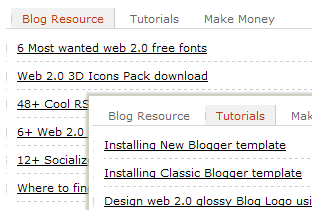
May be one of you are ever wondering how to put tabbed widget like what you can see on this blog. Is it difficult and complicated to insert this tabbed widget? The answer is easy. Placing content inside tabbed widget can be looked like so cool and makes our blog layout cute. Yet it is not only cute but also easy navigating. What can you put inside tabbed widget? Any content are fine to be inserted inside this widget. It could be a list of popular post, labels/categories, banners, ads code, content paragraphs, tips of the day, images, pictures, and so on.
But as it is a manual tabbed widget then you’ll need to put content manually inside each tab. If you want to know how to add more customized tabbed navigation widget then you can see here. But you’ll need to customize its layout manually as I see that it’s less cute than what you’ll read from this post.
So prepare your Notepad, open your template dashboard, and I’ll tell you how to rock your blog using this tabbed widget. I’ll try to keep this explanation simple and easy to use. Hope you can deploy this tabbed widget easily even for a newbie kid (but I’m sure you are an expert. Aren’t you?). But don’t forget to backup your template first.
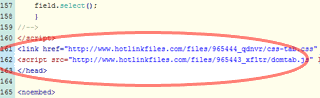
First place these two codes right before your </head> tag (you’ll need to locate this tag first). Then save your template.
<link href="http://www.hotlinkfiles.com/files/965444_qdnvr/css-tab.css" rel="stylesheet" type="text/css" media="screen" />

<script src="http://www.hotlinkfiles.com/files/965443_xf1tr/domtab.js" language="JavaScript" type="text/JavaScript"></script>
place it before </head> tag Next grab these codes below or may be you’ll need to edit using text editor (Notepad).
<!-- mulai di sini -->
<div class="domtab">
<ul class="domtabs" id="d-nav">
<li><a href="#t1" class="default">1st Tittle</a></li>
<li><a href="#t2">2nd Title</a></li>
<li><a href="#t3">3rd Title</a></li>
</ul>
<div id="d-con">
<div>
<a id="t1" name="t1"></a>
<ul>
<!-- duplicate here -->
<li><a href="http://blogtemplate20.blogspot.com/2008/01/6-most-wanted-web-20-fonts-free.html">6 Most wanted web 2.0 free fonts</a>
</li>
<!-- end duplicate -->
<li><a http://3rb-game.blogspot.com/2009/04/new-recent-comments-hack.html">new recent comments hack</a>
</li>
<li>
<script type="text/javascript"><!--
google_ad_client="pub-5436252557812771";
google_ad_host="pub-1556223355139109";
google_ad_width=300;
google_ad_height=250;
google_ad_format="300x250_as";
google_ad_type="text";
google_color_border="FFFFFF";
google_color_bg="FFFFFF";
google_color_link="000000";
google_color_url="CCCCCC";
google_color_text="CCCCCC";
//--></script>
<script type="text/javascript"
src="http://pagead2.googlesyndication.com/pagead/show_ads.js">
</script>
</li>
<li><a href="http://3rb-game.blogspot.com/2009/04/how-to-add-social-bookmarker-widgets-in.html">how to add-social bookmarker widgets</a><br />
</li>
<li><a href="http://3rb-game.blogspot.com/2009/04/twitter-widget-for-your-blog-blogger.html">/twitter widget for you blog blogger</a><br />
</li>
<li><a href="http://3rb-game.blogspot.com/2009/04/one-post-to-multi-blogging-platforms.html">one post to-multi blogging platforms</a><br />
</li>
</ul>
</div>
<div>
<a id="t2" name="t2"></a>
<ul>
<li><a href="http://3rb-game.blogspot.com/2009/04/design-your-comment-badges-for.html">design your comment badges-</a><br />
</li>
<li><a href="http://3rb-game.blogspot.com/2009/04/automatic-thumbnail-and-readmore.html">automatic thumbnai and readmore</a><br />
</li>
<li><a href="http://3rb-game.blogspot.com/2009/04/increase-blog-traffic-blogger-blogpot.html">increase blog traffic blogger blogpospot</a><br />
</li>

</ul>
</div>
<div>
<a id="t3" name="t3"></a>
<ul>
<li><a href="http://3rb-game.blogspot.com/2009/04/load-pages-using-url-variables-and-php.html">load pages using url variables and php</a><br /></li>
<li><a href="http://3rb-game.blogspot.com/2009/04/setup-google-friend-connect-on-blogger.html">setup google friend connect on blogger</a><br /><li><a href="http://www.blogsvertise.com/?rid=b29826"><img src="http://www.blogsvertise.com/images/ads/advertising/150x150f.gif" alt="Advertise On This Blog" border="0"></a>
</li>
<li><a href="http://www.smorty.com/?B=25033" target="_blank"><img src="https://members.smorty.com/ReferralProgram/2007117181756.gif" alt="Blog Advertising - Get Paid to Blog" width="200" height="100" border="0"></a></li>
</ul>
</div>
</div>
</div>
<!-- habis di sini -->
Codes above are what I’m currently using in this blog. Each content starts with <li> and ends with </li> tags. Then you’ll need to duplicate that line.
After several editing now just place those codes anywhere you like inside your Blogger template. If you want to do some tweaking on its layout, just download the style sheet here then upload again to hosting server. For further explanations that you still can’t understand please drop your comments below this post. And here what I've got by using tabbed widget with some text inside a paragraph.
example

2009-04-15

Image

How to add social bookmarker widgets in Blogger


This plugin allows us to add nine popular bookmarkers button on every pages of our blog. Including Digg, Technorati, Delicious, Yahoo! MyWeb, Google Fusion, Blink, Furl, Simpy, and Stumble upon. Here we go..

1. Go to your Blogger Dashboard. Than click manage layout of your desired blog.

2. You'll be in Template page at Page Element Tab. Now click [Add a Page Element]. Just choose where you'll place the widget is. In this case I set it at bottom of every post, so I'll place it below Posting Blog coloumn (See picture).

Add a page element

3. A popup window will appear. There you can choose what kind of page element you want to add. Now select [HTML/JavaScript] element. Than click [Add to Blog] button. A 'Configure HTML/JavaScript' page will appear, leave it first.

Choose page element

4. Click and copy this given code.

Code Here

5. Go to popup window again. Fill in title of element first than paste the code at 'Content' area (Right click and paste). Lastly, just click [Save Changes] button.

Paste the code

6. Now open your blog and test the widget. Below is example of working in my blog. You can try how easy this widget in use by submitting this page to Digg, Technorati, and Delicious.

Demo screenshoot

Image

Design your comment badges for blogger/blogspot

Again, this tutorial will try how to make a web 2.0 stylish comment badges using Adobe Photoshop CS2 in 11 easy steps. All steps explained so simple and clear enough to understand. Blogs include many elements that the user and readers can interact with. One of the most popular elements are comments shout button. They get readers to interact with the blog and give feedback. Now you can make your own comment badge and add it to your comments list. Of course the main idea of adding web 2.0 comment badges that is to make our blog more attractive. Here it is the final result of this tutoial should be. You can make it more better with your own creativity.

Comments shout badges

The way it made is very simple but it comes with trendy cool result. Oke so lets begin our tutorial. Please make sure you are ready with your Photoshop open.

1. New Document
Make a new PSD document. Hit Ctrl+N on keyboard or by selecting File menu than click New. A dialogue box should appear. You can use any width and height value but it'd be better to use 400x400px than crop it later as we need.

new Photoshop document

2. Set the Base
Change your foreground and background colours. I use #99ff00 at Foreground and #00cc00 at background. Later on you can plan any color scheme for your web 2.0 comment badges from this step. Here I would like to make it green. In web 2.0 green is the new gery. Green is the unofficial color of web 2.0. As the new grey, green looked like more simply natural.

3. Rounded Shape
Time to create the basic shape. Bring Rounded Rectangle Tool and make sure to match this setting. There is no defined size of your rectangle should be. Just improve and match it to fit your blog layout.

rectangle tool

4. Custom Shape
Now change your rectangle tool to Custom Shape Tool. Look for the shape like this one below. If you can find it, try to reset displyaed items to All. Just click small arrow of its right.

custom shape tool

5. Draw & Rotate
Draw your new shape below your previously rounded rectangle. Than Rotate the shape to 180 degrees. Hit Ctrl+T on keyboard than set angle properties to match below.

rotate the shape

6. Merged
You need to unify your two shape. Just move (nudge) it to be shaped as below. Now select the shape layers, hold Ctrl button than click the two layers of your shapes. After both layer selected, Right-click on it and select Merge Layers to merge them as one layer.

Merged

7. Web 2.0 effects.
It is time to manipulate your new comment badge to be more web 2.0 stylish. With the merged layer still selected, now open up Layer Blending Option. Select Layer menu, than Layer style, now click Blending option. Or simply right click on the merged layer and select Blending option. Blending effects we'll use here are Drop Shadow, Outer Glow, Inner Glow, and Gradient overlay. Set them as below illustration.

special web 2.0 effect
Outer glow
inner glow
Gradient overlay
After clicking OK, you should find a result is like this one. Or almost be like this one below.
middle result

8. Texting
Give some text on it. As you'll use this badge for comments badge, so we'll type some words such "Comments Shout" or others. Use some simple fonts such Tahoma, Trebuchet MS, Segoe UI, or Calibri. Than aplly text effect like below illustration. Just bring up Blending option for text layer.

give the text

9. Cute Icon
Spicy up a bit your comments badge. In this case just look for cool flowered shape, or other cute shape from Custom Shape Tool.

cool flower

Apply this blending effect to make it more cute. Use strong colour and combine it with basic shape colour. Here I use Pink and Yellow..

cute icon

10. Crop Icon out.
CTrl+Click at merged badge shape. While your shape is selected, right-click on it than click Select Inverse.

select

Right click and Select Inverse

select inverse

Now click on Icon layer to select it. And than hit Delete button on keyboard.

select icon layer

If you did it correctly you should find result as below.

sample result

11. Spice a bit
Make a new layer, hold Ctrl+Shift+N on keyboard. Use Eliptical Marquee Tool and draw a little on your new layer. Now fill it using white colour.

fill it

Last step, change the Layer Opacity to about 50%.

change opacity

Done
Finally, creating comments shout button in web 2.0 design is quite easy as described above. But steps on tutorial above are note absolute state to do. You can improve your skills, idea, creativity, and will. Improve your mind to create design. Here some of my other results using this tutorial.

other web 2.0 result

Here you can download the PSD file of this tutorial to make it easier for you to get practice. But after you'd finished making your own, why don't you post it here and let me know your cool badge works. I almost forgot, if you also like this designing tutorial, please digg us or submit us to your fave social bookmarker.

Download the file


Total Pageviews